01How to create a worksheet batch
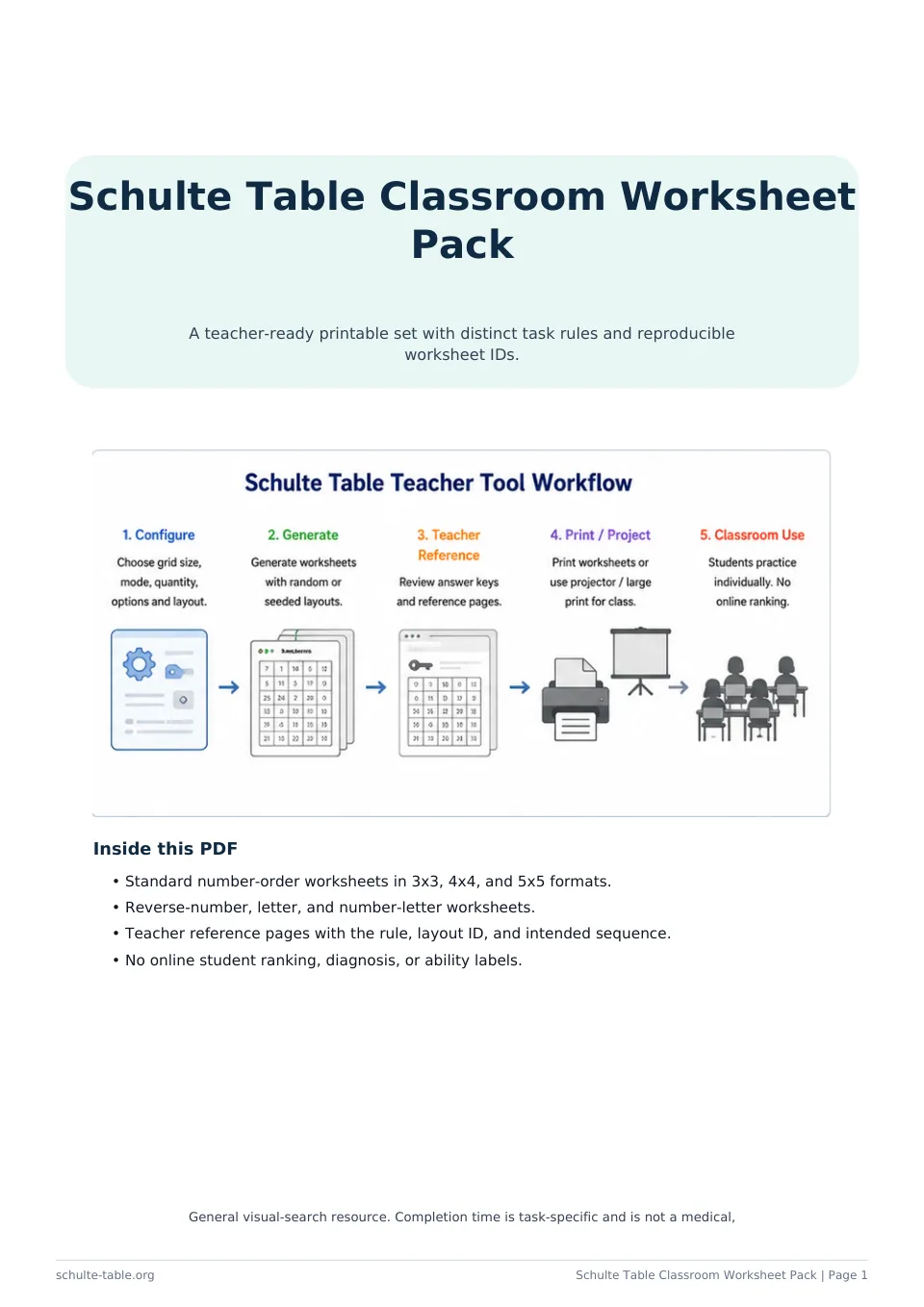
Choose a grid size, number of sheets, paper layout, search direction, and printable fields. Enter a seed when you need to recreate a batch; otherwise the tool creates one. Generate the batch, review every sheet, regenerate a selected layout if needed, and print only when the preview is ready.
02Choosing a grid size for an activity
A 3×3 grid gives a short introduction, 4×4 supports a compact activity, and 5×5 or 6×6 adds more search locations. These are age-independent task labels, not grade or ability levels. Increase or reduce the grid from observed comfort and accuracy.
03Accuracy-first classroom use
Explain the order before beginning and allow an untimed first round. Ask pairs to check the next target rather than race. If timing is used, keep individual results private and discuss correct sequencing instead of identifying fastest or slowest participants.
04Projector mode
Projector mode shows one large shared grid. The class countdown is optional, can be paused, and is separate from individual timing. New Grid replaces the arrangement; Hint identifies the next number without saving any participant response.
05Printing and paper settings
A4 and US Letter, portrait and landscape, and one to six sheets per page are available. Browser print is used locally. Student pages and teacher reference pages receive separate page groups so reference material is not accidentally mixed into a worksheet page.
06Student privacy
The page does not ask for a roster, account, email address, or individual result. Name, date, class, time, and mistake areas are empty printed fields only. Batch IDs identify a layout set and contain no student information.
07Accessibility and inclusive use
Large-print and high-contrast options apply to the preview and printout. Controls have labels, sheets can be selected by keyboard, and print buttons are explicit. Offer an untimed version and another size when the current layout is uncomfortable.
08What the activity does not assess
A worksheet result cannot establish attention, reading skill, learning level, or health status. Screen, paper, instructions, familiarity, motor input, and classroom conditions all affect how a person completes it.