Using Schulte Table Worksheets in a Classroom Without Ranking Students
Use the Schulte Table teacher workspace to create reproducible worksheets, teacher references, large-print options and optional projector activities while keeping timing private and avoiding unsupported student ability labels.
By schulte-table.org editorial team ·
The Teacher workspace is a preparation and presentation tool: it generates numbered worksheets, matching teacher references, and an optional shared projector grid. It is not a student account system, an educational assessment, or a source of validated ability labels.
A useful classroom workflow starts by deciding what artifact the group needs—an untimed introduction, private optional timing, paired sequence work, or a projected shared activity—then keeps names and comparisons out of the website itself.
1. What the Teacher workspace can prepare
Worksheet settings cover 3×3, 4×4, 5×5, or 6×6 grids; batches of 1, 2, 4, 6, 10, 20, or 30 sheets; A4 or US Letter; portrait or landscape; 1, 2, 4, or 6 sheets per page; and ascending or descending number order. A batch can use an optional seed, or create one when the field is blank.
Paper options add any chosen blank Name, Date, Time, Mistakes, and Class / group lines. Instructions can be printed on student sheets. Teacher reference pages can show the matching grid, a numbered target position index with row and column, and an optional drawn order path. High contrast and large print change presentation.
A separate projector mode offers 3×3 to 5×5 fresh grids, optional 2-, 5-, or 10-minute countdown, pause, next-target hint, full screen, and target reset. Projector state is held in the page while it is open; the workspace does not create student profiles or store individual results.
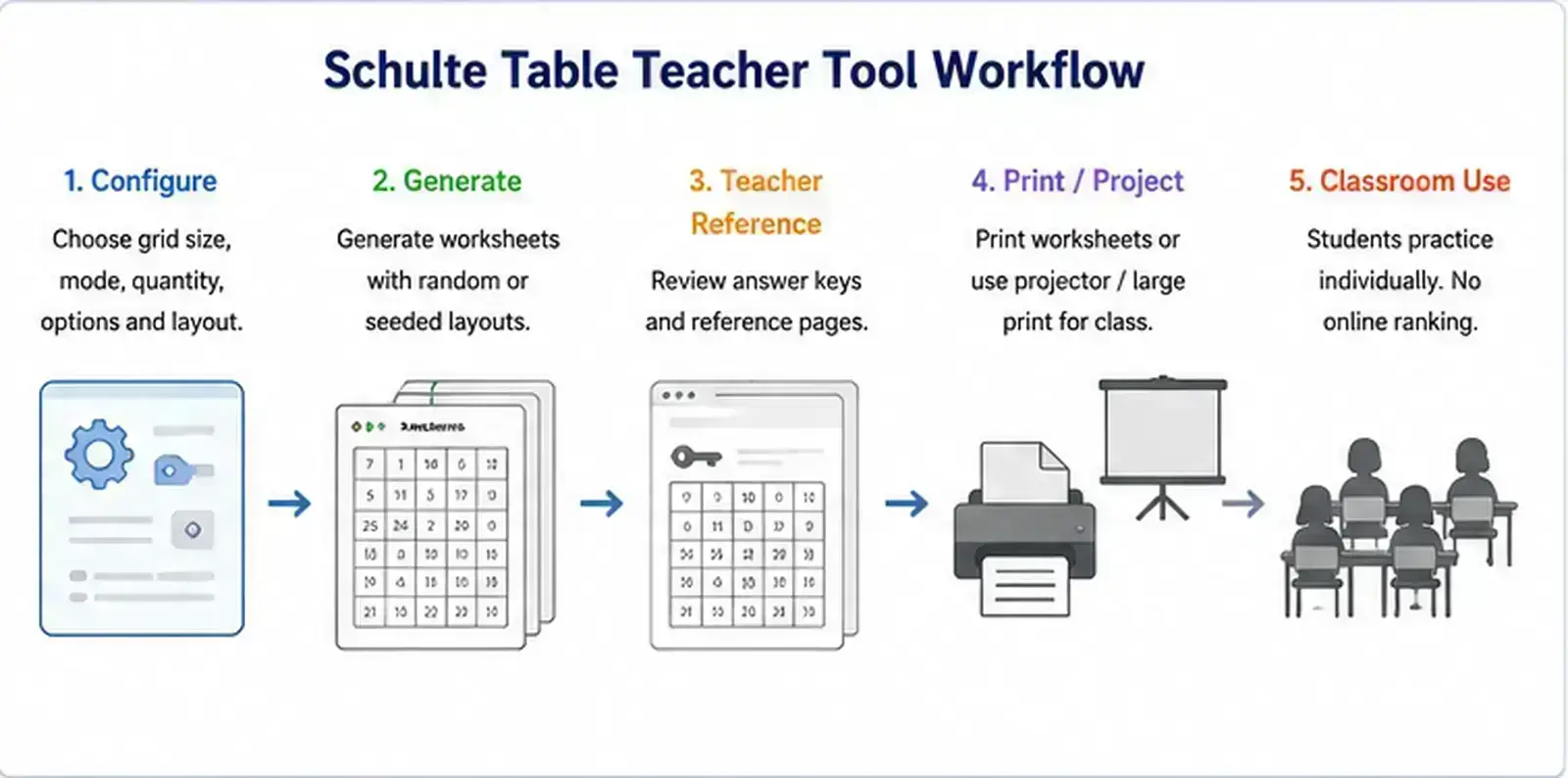
Student sheets
Numbered grids with optional instructions and blank paper fields. The blanks are printed; they are not online roster inputs.
Teacher references
Matching layout, target row/column index, and an optional order path for checking the generated sheet.
Projector activity
A shared fresh grid with optional countdown and hints, without names, rankings, or stored individual outcomes.
2. Before class: prepare the batch
Choose a grid students can read comfortably; the site does not prescribe a size by age. Set the number of sheets, page format, orientation, and page density after considering the actual printer. Decide in advance whether the activity is untimed, privately timed, or paced only at group level.
Select blank fields only if you need them on paper. If reproduction matters, enter or retain the generated seed together with the settings and Batch ID. Generate the batch, inspect several student previews, open the teacher references, and confirm that the direction, position index, and optional path match the instruction.
Use explicit Print student sheets, Print teacher references, or Print both groups actions. Check the browser print preview for scale and page breaks. A4 and Letter have different proportions, and large print or high contrast may change the best sheets-per-page setting.
3. During the activity: explain the rule, not a rank
State the sequence explicitly: from 1 upward or from the highest value down to 1. An untimed first look can establish where instructions, blank fields, and the grid appear. Distribute sheets so written details remain private rather than visible on a projected leaderboard.
If timing is used, participants or the organizer need a consistent paper start/stop convention and mistake rule because printed sheets have no automatic timer or error detector. Do not call out fastest and slowest participants. A shorter sheet time cannot be converted by this tool into a student ability category.
Offer a smaller grid, large print, high contrast, or no timer when those display and participation options make the worksheet usable. Stop or switch format if the screen or paper activity is uncomfortable. These settings are interface choices, not evidence for a disability or special-needs classification.
- Explain the target sequence
- Let participants confirm the page layout
- Keep individual times and mistakes private
- Use one paper timing/error convention if timing is chosen
- Offer readable or untimed alternatives
- Discuss search process rather than ability labels
4. Timing choices
Timing is optional. The choice should follow the activity plan rather than an assumption that every worksheet needs a score.
| Classroom choice | When it may be useful | What to avoid |
|---|---|---|
| Untimed | Introducing the sequence or allowing self-paced paper work | Turning completion order into a speed contest |
| Private timing | Keeping an individual task record under a stated rule | Publishing a class leaderboard |
| Shared projector countdown | Optional group pacing | Presenting the countdown as an ability test |
| No timing field | A low-pressure worksheet with only sequence checking | Assuming an untimed activity must be ranked another way |
5. Reproduce a worksheet batch and its references
For the current generator, the batch seed combines with grid size, quantity, page size, orientation, sheets per page, and direction. Batch ID identifies that seed/settings combination. Each sheet also has a number and revision. Retain these details when a replacement set must match.
Teacher references are generated from the same sheet objects. The position index lists each target’s row and column; descending references reverse the displayed target order. The optional path draws the sequence through those positions. A reference therefore matches the generated sheet—it is not a generic answer page for every grid of that size.
Regenerate selected sheet increments its revision and creates a different layout while preserving uniqueness within the batch preview. That is useful when one sheet needs changing, but it also means the revised batch is no longer identical to the original revision state.
| Detail | Why it matters |
|---|---|
| Seed | Base reproducibility input |
| Generation settings | Part of Batch ID and sheet inputs |
| Batch ID | Quick identifier for seed + settings |
| Sheet number and revision | Identify the exact sheet variant |
| Print options | Keep fields, instructions, contrast, size, and references consistent |
6. After the activity: collect only what is needed
The page does not ask for a roster, account, or email. Name and Class / group are blank print fields; nobody types those details into the Teacher workspace. Batch layouts are generated in the browser, and the interface states that worksheets and student data are not uploaded by the tool.
If paper sheets are collected, the teacher or institution controls those physical records outside this website. Leave identity fields off when they are unnecessary. Do not copy student names into URLs, site controls, or support messages. The site’s Privacy page covers local browser data and separate Google services; it is not a legal determination for a particular classroom.
For a group discussion, talk about the sequence rule, differences between layouts, or how the reference locates targets. Avoid translating one time, error count, or completion into a claim about attention, intelligence, achievement, or a population position.
7. Why this is not a student ranking system
Paper size, print scaling, grid arrangement, direction, pointing method, timing convention, familiarity, and accessibility options can differ. The workspace does not normalize these conditions or provide a representative student norm. Its Batch ID identifies materials, not performance standards.
The worksheet can document completion under a chosen classroom procedure. It cannot support a diagnosis, intelligence score, educational placement, population rank, or guarantee of transfer to reading or study. Keeping comparison private and procedural matches what the current tool can actually evidence.
Frequently asked questions
Does the Teacher workspace store student names?
No. Name and Class / group are optional blank fields printed on paper; the page has no online roster field or student account.
Can I reproduce the same worksheet batch?
Yes, when the seed, relevant generation settings, sheet revisions, and print choices are retained. The Batch ID helps identify the seed/settings combination.
Is timing required?
No. Printed worksheets can be untimed, privately timed under a stated manual rule, or used with optional group pacing.
Does the workspace grade or rank students?
No. It generates materials and a shared projector activity; it has no validated student norm, grading model, or public leaderboard.