Printable vs Browser Schulte Tables: What Changes When You Move to Paper
Compare printable and browser Schulte Tables by randomization, timing, error tracking, target size, input method, and result recording so you know when two attempts are actually comparable.
By schulte-table.org editorial team ·
Moving a Schulte Table from the browser to paper changes more than portability. It changes who times the attempt, who records an error, how a target is selected, and whether the next grid is a new shuffle or the same prepared layout.
The browser tool, the browser-generated printable page, and the prepared PDF on this site serve different workflows. Choosing among them is easier when those differences are explicit—and it prevents a paper time from being silently mixed into a browser history that used different rules.
1. What the browser workflow records
An interactive numbered grid is generated in the browser with a shuffled arrangement. You start by selecting the first correct number; in the standard task that first correct selection starts the timer. Each later correct selection advances the target, while an incorrect selection increases the error count without advancing it. Completion stops the timer.
Supported completed results are saved to localStorage in the current browser. The progress tracker can read those local records; there is no account sync. Resetting or reshuffling prepares another browser task, so the next arrangement can differ. Clearing site storage removes the shared history, and using another browser or device creates a separate history.
This automation is useful when you want consistent event timing and error handling. It does not make the result device-independent: mouse, trackpad, and touch still create different input paths, and screen layout still changes target size.
2. What changes in a printable workflow
The printable page uses the browser's current generated arrangement. You can reshuffle before printing, then open the browser print dialog. Paper size, scaling, margins, headers and footers, and printer settings determine the physical result. Print preview is the place to verify that the whole grid fits and the cells remain readable.
Once the page is on paper, it has no built-in timer or automatic error counter. A person needs a stopwatch or other clock and must decide exactly when timing starts and stops. Mistakes need a tally mark, observer, or later annotation. Pointing with a finger, pen, capped marker, or gaze-only rule creates different evidence; write the method down.
Printing several randomized jobs can provide different layouts, but each sheet is fixed after it is printed. If the same sheet is repeated, familiarity with that arrangement may influence later attempts. Label sheets or note whether a layout was new rather than assuming every paper trial is equivalent.
3. Prepared PDF versus browser-generated printable
The prepared PDF download and the printable page are not two links to the same workflow. The PDF contains pre-laid-out, fixed pages. Its contents stay the same until the downloadable asset is replaced. That makes it convenient to save, attach, share, or print again with known page contents.
The printable page begins from a browser-generated current arrangement. You can reshuffle the on-screen grid before invoking the print dialog, which makes it suitable when you want a new arrangement. The browser and printer still control scale and margins; “printable” does not guarantee an identical physical size on every printer.
Use the PDF when a stable file matters. Use the printable tool when creating a new grid before each print matters. Use the interactive browser grid when automatic timing, incorrect-selection tracking, and supported local history matter.
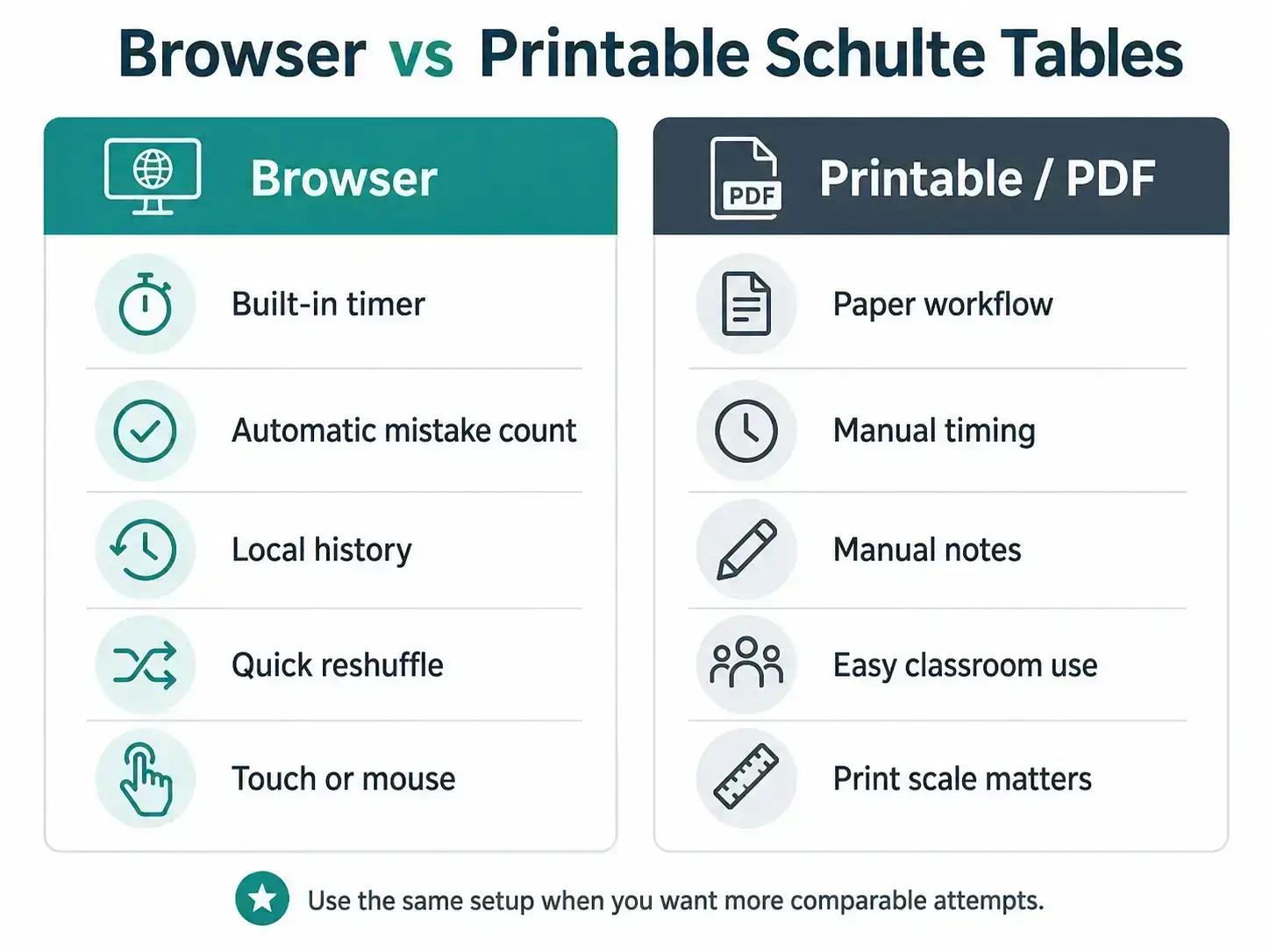
4. Feature comparison based on the current tools
This table describes the site's current workflows. “Yes before printing” means the web page can generate a new arrangement; paper itself cannot reshuffle.
| Feature | Browser | Printable page | Prepared PDF |
|---|---|---|---|
| Grid can reshuffle | Yes | Yes, before printing | No, fixed |
| Built-in timer | Yes | No after printing | No |
| Automatic error count | Yes | No | No |
| Local history | Supported modes | No | No |
| Physical target size | Screen-dependent | Print-setting-dependent | Print-setting-dependent |
| Manual annotations | Limited | Yes | Yes |
5. Why browser and paper times may differ
A browser attempt uses a mouse, trackpad, touch screen, or possibly a stylus to activate cells. A paper attempt usually uses a finger or pointing object and may involve a separate timekeeper. The hand can cover the page differently from a finger on glass, and a physical sheet can sit flat, move on a desk, or be viewed from a different distance.
Print scale changes cell dimensions and the distance between far-apart targets. “Fit to page” on one printer may not match 100% or actual-size output on another. Margins can move the grid, and US Letter and A4 have different proportions. Screen CSS pixels and printer millimetres are not interchangeable measurements.
Manual timing adds a start/stop convention and human reaction delay. Manual error recording can miss a touched number or count a hesitation differently from the browser, which reacts only to selection events. These are workflow differences, not defects. They mean a browser result and printed result should not automatically be merged into one like-for-like history series.
6. Make a paper series reproducible
Define the rule before the first attempt. For example: start the stopwatch when the participant touches 1; stop when 25 is touched; count every touched out-of-order cell once; use a capped pen; keep the page in portrait orientation. Another rule can work, but changing it midway makes the series harder to interpret.
Keep paper size and print scale fixed, and record whether each grid is new or repeated. If an observer records errors, use the same observer procedure. Run several trials and summarize them separately from browser records. As on screen, the result describes this task setup and is not a diagnosis or a general ability rating.
- Same paper size and print scale
- Same grid size and sequence rule
- Same pointing method
- Same timer start and stop convention
- Same mistake-counting rule
- New or repeated layout clearly marked
- Interruptions noted instead of hidden
7. Paper result worksheet
Print this page or copy the fields below beside a worksheet. The fields preserve the conditions that the browser would otherwise handle automatically. “Notes” can identify an interruption, repeated layout, or a changed timer rule; it need not contain personal information.
Keep paper records with the participant or organizer. The site does not receive a worksheet when this article is printed.
8. Choose the workflow that matches the job
For immediate automatic timing and error counting, use an interactive grid or the generator and keep the input condition stable. For a fresh paper layout, use the printable page, reshuffle if needed, inspect print preview, and write down the print settings. For a file that can be saved and printed repeatedly, use the prepared PDF and remember that its layouts are fixed.
The tools directory links all variants, while the local progress tracker is designed for supported browser records. Paper results can be written beside the browser summary for context, but adding them to the same numerical series would imply a precision the workflows do not share.